
Campaign Type: Early Bird Discount
An Early Bird Discount is a powerful marketing tool designed to create urgency and drive rapid sales by rewarding your first customers. The discount is based on the total number of successful orders that have already used the campaign.
This is the perfect campaign type for scenarios like:
- "50% off for the first 100 customers!"
- "Launch Special: The first 50 orders get $20 off, the next 100 get $10 off."
- Creating a flash sale with a limited number of available slots.
Important: Order vs. Quantity
An Early Bird discount is based on the number of orders, not the quantity of items purchased. If one customer buys 100 items in a single transaction, it only counts as one use toward the campaign's limit.
This guide will walk you through every field required to set up this campaign type.
Step 1: Select Your Campaign Type
To begin, navigate to CampaignBay → Add Campaign.
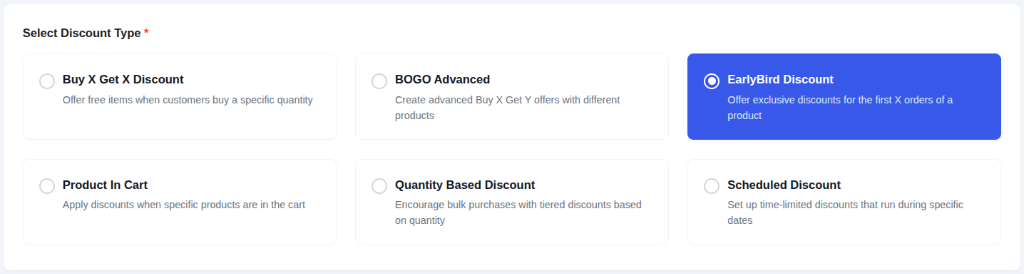
- Select Discount Type: Choose
EarlyBird Discountfrom the list. This will reveal the tiered configuration for rewarding your first customers.

- Campaign Title: Give your campaign a clear and descriptive name (e.g., "New Product Launch Offer").

- Select Status:
- Active: The campaign will be live immediately (or on its scheduled start time).
- Inactive: Save the campaign as a draft.
Step 2: Set the Discount Target
This crucial step defines which products in your store are eligible for the early bird discount.
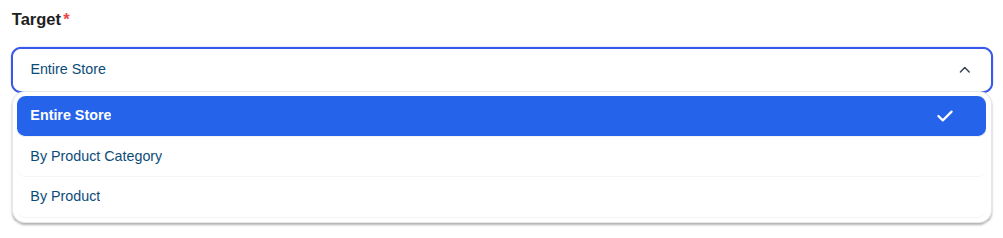
The DISCOUNT TARGET dropdown provides powerful options to control the scope of your campaign, such as applying it to the entire store, specific products, or categories.
Learn More About Targeting
The "Discount Target" setting is a powerful feature shared by all campaign types. We've created a dedicated guide to explain all of its options and conditional fields in detail.
Step 3: Define Discount Tiers For First Sales
This is the core of the Early Bird Discount. Here you will define the tiers based on the number of successful orders.

- For First: Enter the number of orders for this tier. For example, entering
10here means this tier applies to the first 10 successful orders. - Orders (e.g., 1 - 10): This label automatically updates to show the range of orders covered by this tier.
- Get: The numeric value of the discount.
- % / Fixed ($) (Mode): The type of discount to apply (Percentage or Fixed Currency amount).
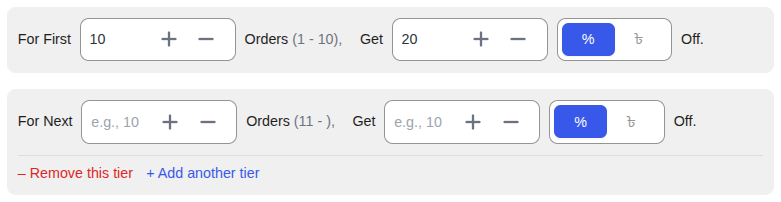
- + Add another tier: Click this to add multiple levels of Early Bird offers (e.g., "For Next 10 Orders..."). Each subsequent tier will automatically pick up where the previous one left off.
How Tiers Work
The tiers work sequentially from top to bottom.
Example Tier Setup:
- Tier 1: For First
Sales (1 - 100), give50% - Tier 2: For First
Sales (1 - 250), give25%
In this scenario:
- Orders 1 through 100 will receive a 50% discount.
- Orders 101 through 250 will receive a 25% discount.
- Order 251 and beyond will receive no discount from this campaign.
Step 4: Set Conditions (Optional)
You can add specific rules to restrict who can use this discount (e.g., specific User Roles).
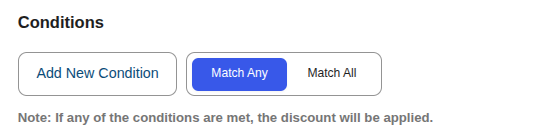
Read the Full Guide: How to Use Conditions →
Step 5: Set Other Configurations (Optional)
This section provides additional rules for your campaign.

- Exclude Sale Items: Check this box if you do not want this campaign's discount to apply to products that are already on sale in WooCommerce. This is useful for preventing "double discounting."

- Enable Usage Limit: Check this box to set a maximum number of times this campaign can be used across your entire store. Once the limit is reached, the campaign will automatically become inactive.
Step 6: Set the Schedule (Optional)
For a Scheduled Discount, setting the duration is essential. This section controls when your campaign will automatically start and end.
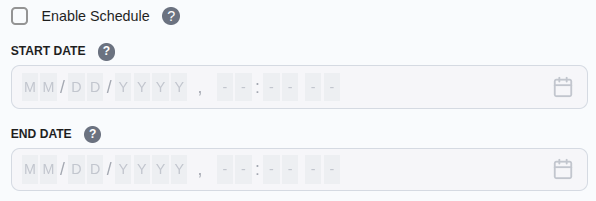
- Start Time / End Time: Use the date and time pickers to set the exact moment for the campaign to activate and expire.
Timezone Information
All dates and times are based on the timezone you have configured in your main WordPress settings under Settings → General → Timezone. The system automatically handles all UTC conversions for you.
Learn More About Automation
The status of your campaign is closely tied to the scheduling system, which uses WordPress Cron to automate activation and expiration.
Step 7: Display Configurations
This section controls how the offer is communicated to the customer, both on the product page and in their cart.

- Show Product Page Promotional Message: Toggle this to enable or disable the custom message on the product pages.
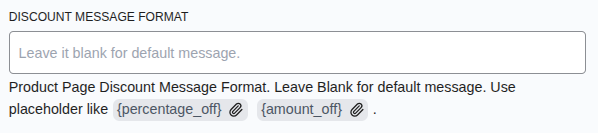
Product Page Discount Message Format: Customize the promotional text using placeholders like
{percentage_off}or{amount_off}.- Example:
Early Bird Special! Get {percentage_off}% off for a limited time!
- Example:
Cart Page Discount Message Format: Enter a message to display on the cart page when the discount is applied.
- Example:
Early Bird discount applied: {discount_amount}
- Example:
Cart Page Message Location: Choose where the cart message should appear (e.g., next to the line item name).
Step 8: Save the Campaign
Once you have configured all the options, click the Save Campaign button at the top right of the page. After saving, you will be redirected back to the "All Campaigns" list.
Next Steps
Next, learn how to create campaigns that offer "Buy One, Get One" style deals.