
Campaign Type: BOGO Discount (Buy X Get X)
A BOGO (Buy One, Get One) discount is a popular promotional tool that rewards customers with free or discounted items when they purchase a specific quantity of a product. This guide covers the "Buy X Get X" type, where the item the customer "gets" is the same as the item they "buy".
This is the perfect campaign type for scenarios like:
- "Buy 2 T-Shirts, Get 1 Free"
- "Buy 3, Get 1 Free" on specific items.
This guide will walk you through every field required to set up this campaign type.
Step 1: Select Your Campaign Type
To begin, navigate to CampaignBay → Add Campaign.
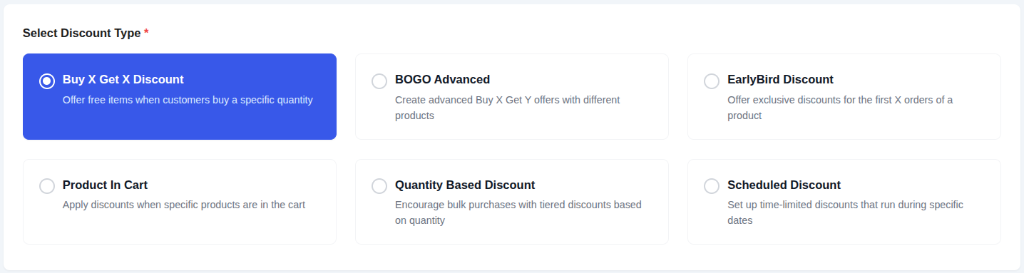
- Select Discount Type: Choose
Buy X Get Xfrom the list. This will reveal the configuration fields for the standard BOGO offer, where the "Buy" item and the "Get" item are the same.

- Campaign Title: Give your campaign a clear and descriptive name (e.g., "Hoodie BOGO Deal").

- Select Status:
- Active: The campaign will be live as soon as its start time is reached.
- Inactive: The campaign will be saved as a draft.
Step 2: Set the Discount Target
This crucial step defines which products in your store are eligible for the BOGO offer.
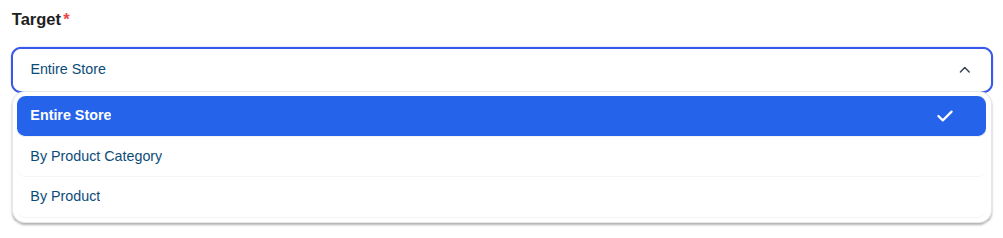
The DISCOUNT TARGET dropdown provides options to apply the offer to your entire store, specific products, or categories.
Learn More About Targeting
The "Discount Target" setting is a powerful feature shared by all campaign types. We've created a dedicated guide to explain all of its options and conditional fields in detail.
Step 3: Define the BOGO Rule
This is the core logic of your campaign.
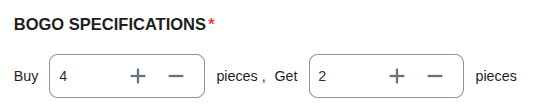
- Buy X pieces: Enter the number of items the customer needs to purchase to trigger the offer (e.g.,
2). - Get Y pieces: Enter the number of items the customer will receive for free (e.g.,
1).
How it works
If you set Buy 2 Get 1, and a customer adds 3 items to their cart, the cheapest one will be free. If they add 6 items, the 2 cheapest ones will be free.
Step 4: Set Conditions (Optional)
You can add specific rules to restrict who can use this discount (e.g., specific User Roles).
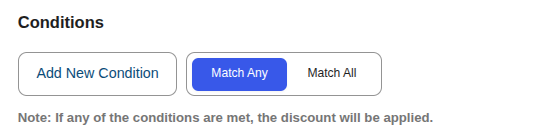
Read the Full Guide: How to Use Conditions →
Step 5: Set Other Configurations (Optional)
This section provides additional rules for your campaign.

- Exclude Sale Items: Check this box if you do not want this campaign's discount to apply to products that are already on sale in WooCommerce. This is useful for preventing "double discounting."

- Enable Usage Limit: Check this box to set a maximum number of times this campaign can be used across your entire store. Once the limit is reached, the campaign will automatically become inactive.
Step 6: Set the Schedule (Optional)
For a Scheduled Discount, setting the duration is essential. This section controls when your campaign will automatically start and end.
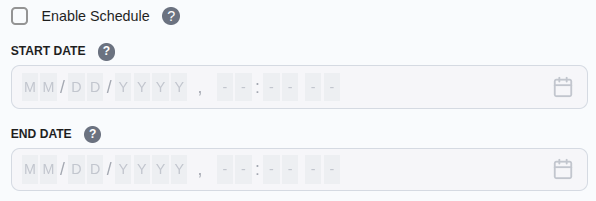
- Start Time / End Time: Use the date and time pickers to set the exact moment for the campaign to activate and expire.
Timezone Information
All dates and times are based on the timezone you have configured in your main WordPress settings under Settings → General → Timezone. The system automatically handles all UTC conversions for you.
Learn More About Automation
The status of your campaign is closely tied to the scheduling system, which uses WordPress Cron to automate activation and expiration.
Step 7: Define Display Configurations
This section is unique to BOGO campaigns and controls how the offer is communicated and applied.
- Automatically Add Free Product To Cart: This is a powerful user experience feature.
- If checked: When a customer adds the "Buy Amount" (e.g., 2 items), the free "Get Quantity" (e.g., 1 item) will be automatically added to their cart at no cost.
- If unchecked: The customer must manually add the total quantity to their cart (e.g., 3 items). The plugin will then automatically apply a discount equal to the price of the "Get Quantity" (1 item).
Messaging Options

- Show BOGO Promotional Message at product page: Toggle this to enable or disable the custom message on the product page.
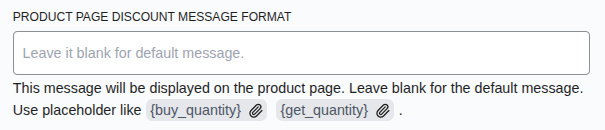
- Product Page Discount Message Format: Enter a message to display on the product page. Use placeholders like
{buy_quantity}and{get_quantity}.- Example:
Buy {buy_quantity} and get {get_quantity} free!
- Example:
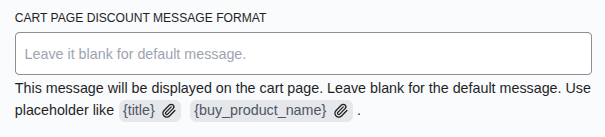
- Cart Page Discount Message Format: Enter a message to display in the cart. Use
{title}to show the campaign name.- Example:
Discount '{title}' has been applied!
- Example:

- Cart Page Message Location: Choose where the cart message should appear (e.g., next to the line item name).
Step 8: Save the Campaign
Once you have configured all the options, click the Save Campaign button. You will be redirected to the "All Campaigns" list where you can see your new BOGO offer.
Next, learn how to create advanced BOGO deals where product X gives product Y.