
All Campaigns
The All Campaigns page is your central hub for managing and organizing all discount campaigns. View, filter, sort, and perform actions using either a detailed Table View or a visual Grid View.
Import & Export

Quickly migrate or backup your campaigns:
- Import: Upload a CSV file to restore campaigns from another site or backup
- Export: Download all campaigns as CSV for backup or migration
Toolbar
The toolbar provides instant search, filtering, and view switching.
Search

Start typing a campaign name to instantly filter results.
Filtering
Click the filter icon to open advanced filtering options:
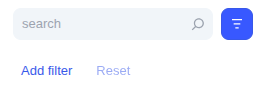
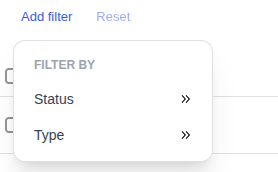
Filter by Status (Active, Inactive) or Type (Scheduled, Quantity, BOGO, etc.).
Active filters appear as removable pills:

The filter icon shows a badge indicating how many filters are active:

View Toggle & Settings
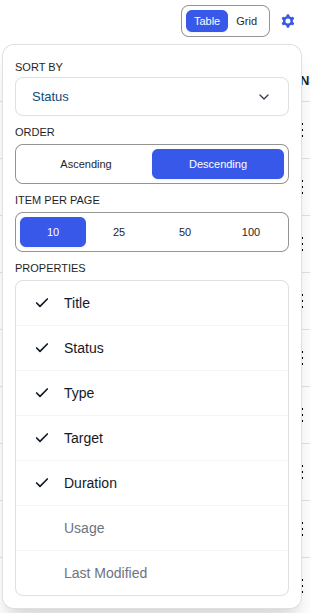
Click the gear icon to access display settings:
| Setting | Options |
|---|---|
| Sort By | Status, Title, Type, etc. |
| Order | Ascending / Descending |
| Items Per Page | 10, 25, 50, 100 |
| Properties | Toggle which columns to show |
Table View
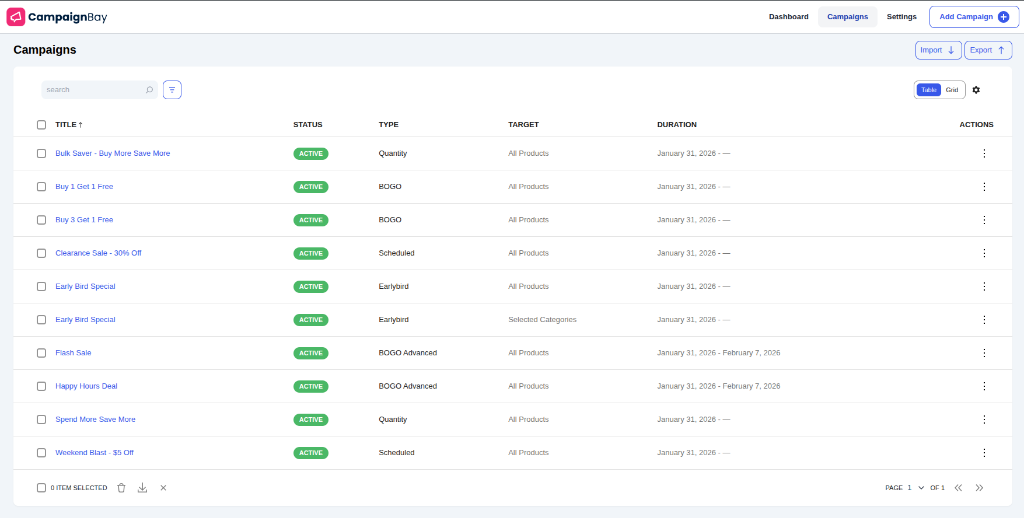
A dense, data-rich list with sortable columns:
| Column | Description |
|---|---|
| Title | Campaign name (click to edit) |
| Status | Active/Inactive indicator |
| Type | Scheduled, Quantity, BOGO, etc. |
| Target | All Products, Selected Categories, etc. |
| Duration | Start and end dates |
| Usage | Times applied (hidden by default) |
| Last Modified | When last updated (hidden by default) |
| Actions | Row action menu |
Row Actions

Click the action icons at the end of each row:
- Edit (pencil) — Open the campaign editor
- Delete (trash) — Remove the campaign
- Duplicate (copy) — Create an exact copy
Or hover over / click the three-dot menu (⋮) to reveal the same options.
Grid View
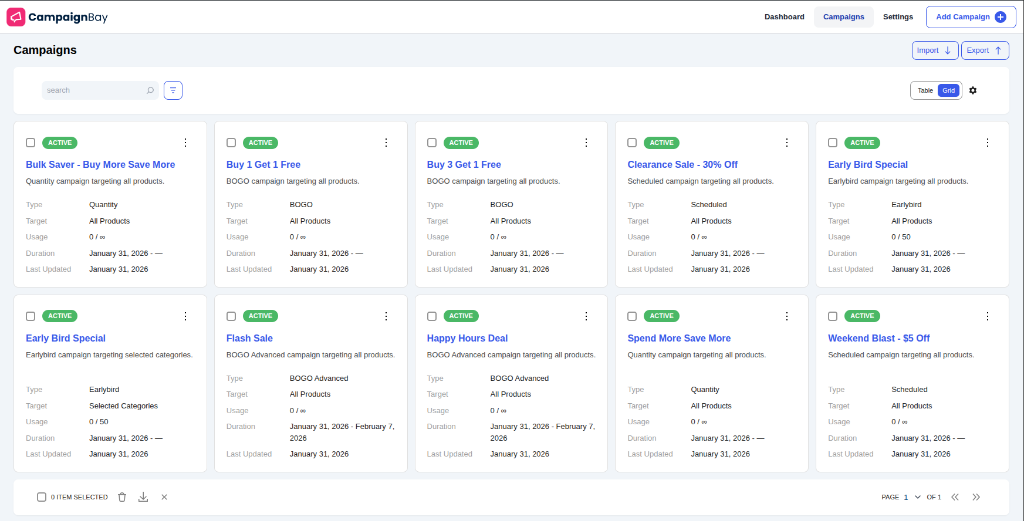
A visual, card-based layout showing key information at a glance:
- Status Badge — Color-coded Active/Inactive
- Campaign Name — Title of the campaign
- Type & Target — Campaign logic and scope
- Usage — How many times applied
- Duration — Start and end dates
- Last Updated — When last modified
Bulk Actions & Pagination
Select multiple campaigns using checkboxes, then use the bulk action bar at the bottom:

- Delete — Remove all selected campaigns
- Export — Download selected as CSV
Next Steps
Now that you know how to manage your campaigns, explore each campaign type:
Free Campaign Types:
Pro Campaign Types: (Get CampaignBayPro)
- BOGO Advanced (Buy X Get Y) → – Cross-sell with different buy/get products
- Product In Cart → – Trigger discounts based on cart contents
Conditions:
- Conditions → – Target by User Role, Cart Total, Order History, and more